Preparing for the PMS Transition
Introduction
You’re planning to switch from another hotel software solution to Casona and want to prepare the system as best as possible so you can get up and running quickly. Here you’ll find all the necessary steps to ensure a smooth transition.
Request Data from Your Previous Provider
If you know where to access the data (guest master data and travel data) in your previous software, export all of it from there. In addition to current reservations, you should also try to export data from the previous year.
If you don’t know how to export the data, contact your previous software provider’s support team and ask them to provide the guest and reservation data. The data should be made available to you after a short while. In the meantime, you can continue setting up your hotel.
Room Categories
To ensure correct assignment, the categories and rooms in Casona must be set up exactly as they appear in the export data from your previous provider. In the Casona menu, click Rooms → Categories.
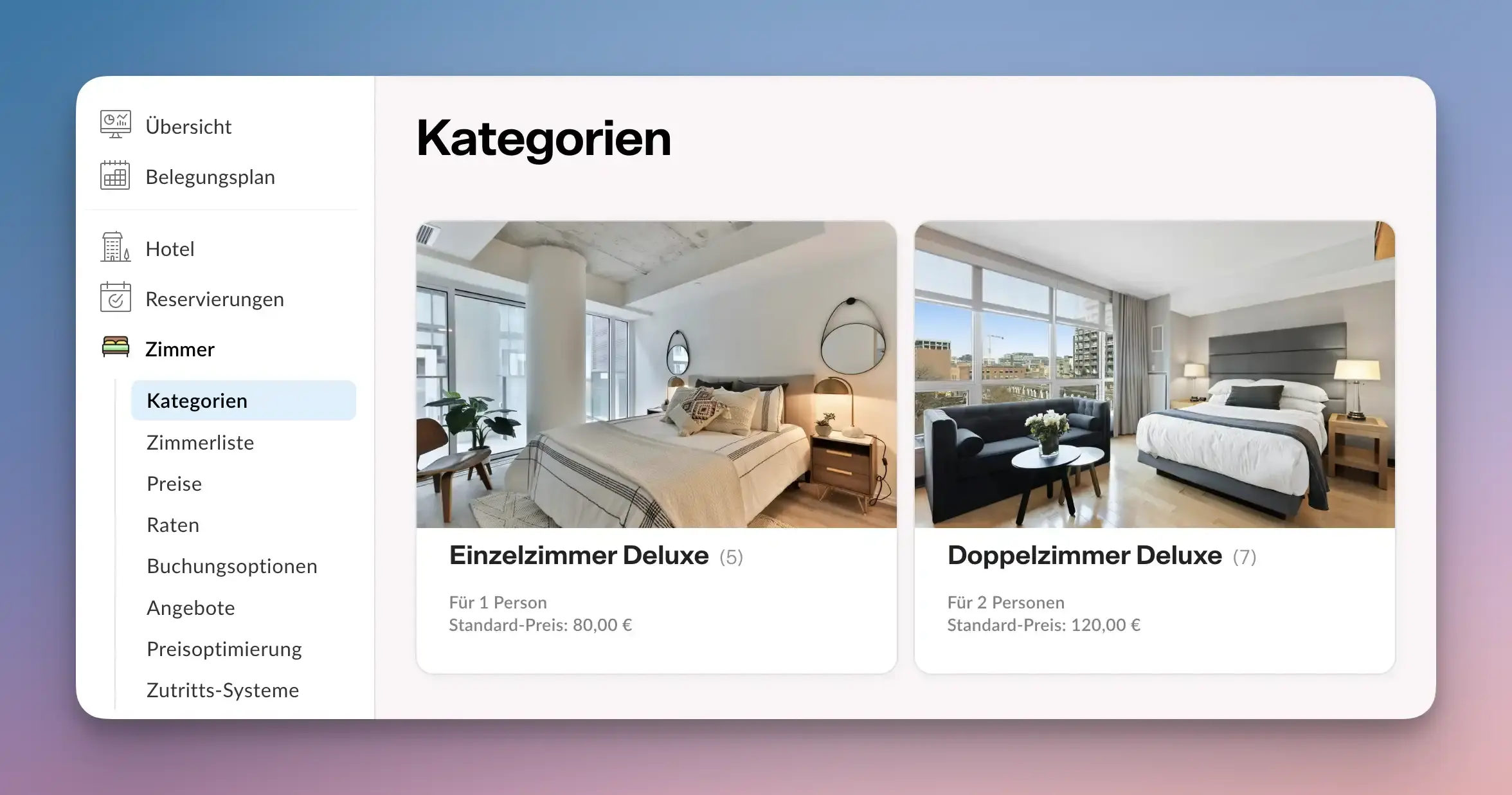
In the overview, you'll find sample categories created by Casona. Click on one of the categories and then select "Delete this category" at the bottom. Repeat this process until all categories have been deleted.
Now create your own room categories using the “Add” button. Categories generally include rooms with identical characteristics.
The following fields are important: Name, Abbreviation (max. four characters), and Number of Beds/Guests. Under the “Prices” section, you should set a base price that will always be used when no other prices (seasonal rates) are specified for this room. To be on the safe side, you can set this price quite high (e.g., trade show rate) and override it later with lower prices in the price calendar.
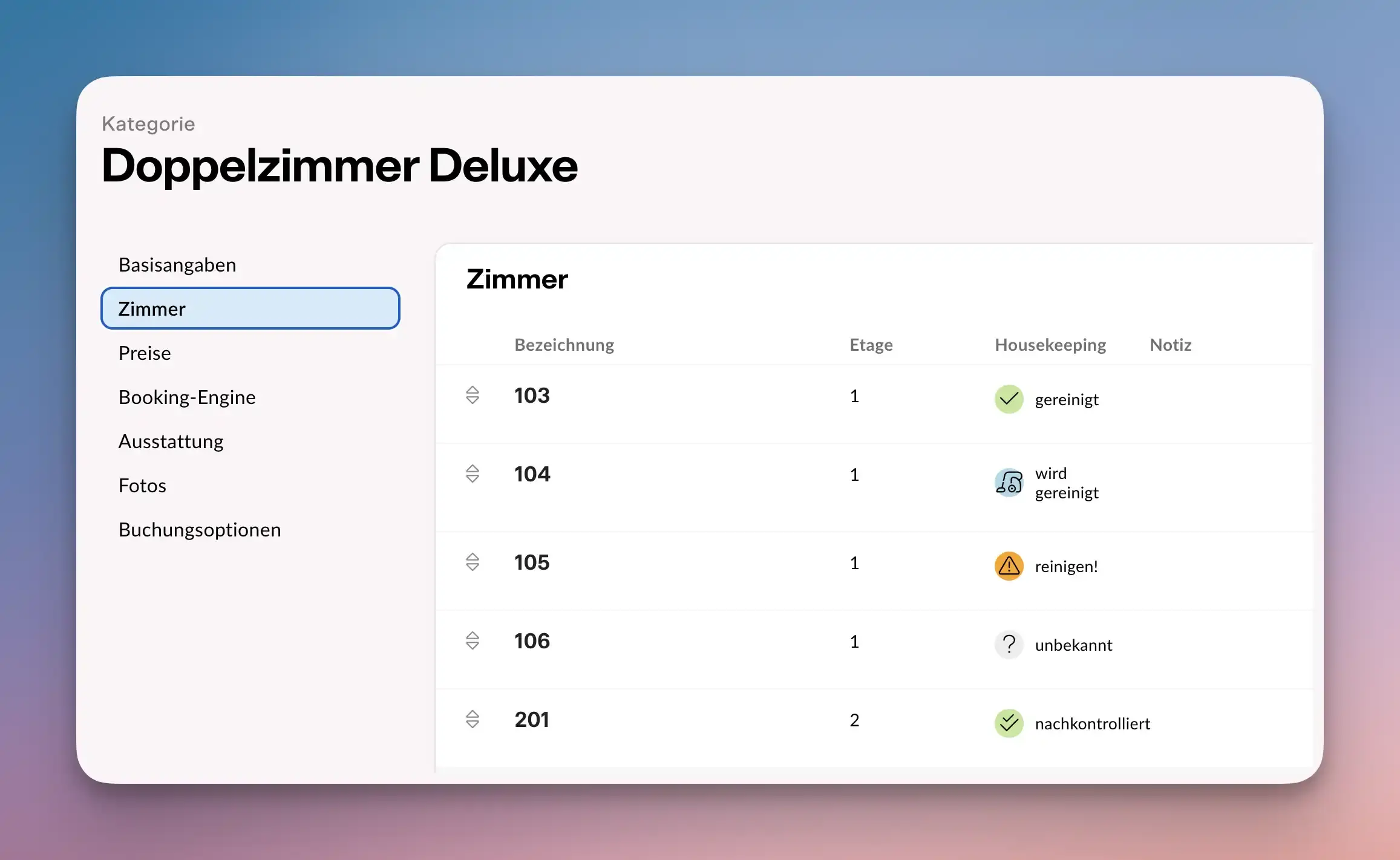
Save the category and select the “Rooms” option within the category. Add the rooms and their names exactly as they appear in the data export from your previous software. Otherwise, imported reservations cannot be linked correctly.
Booking Options
When importing data, we also try to include any options that were booked in previous reservations. In the Casona menu, click Rooms → Booking Options. Add the options—for example, for breakfast—exactly as they appear in the old system: Tips for Setting Up Booking Options
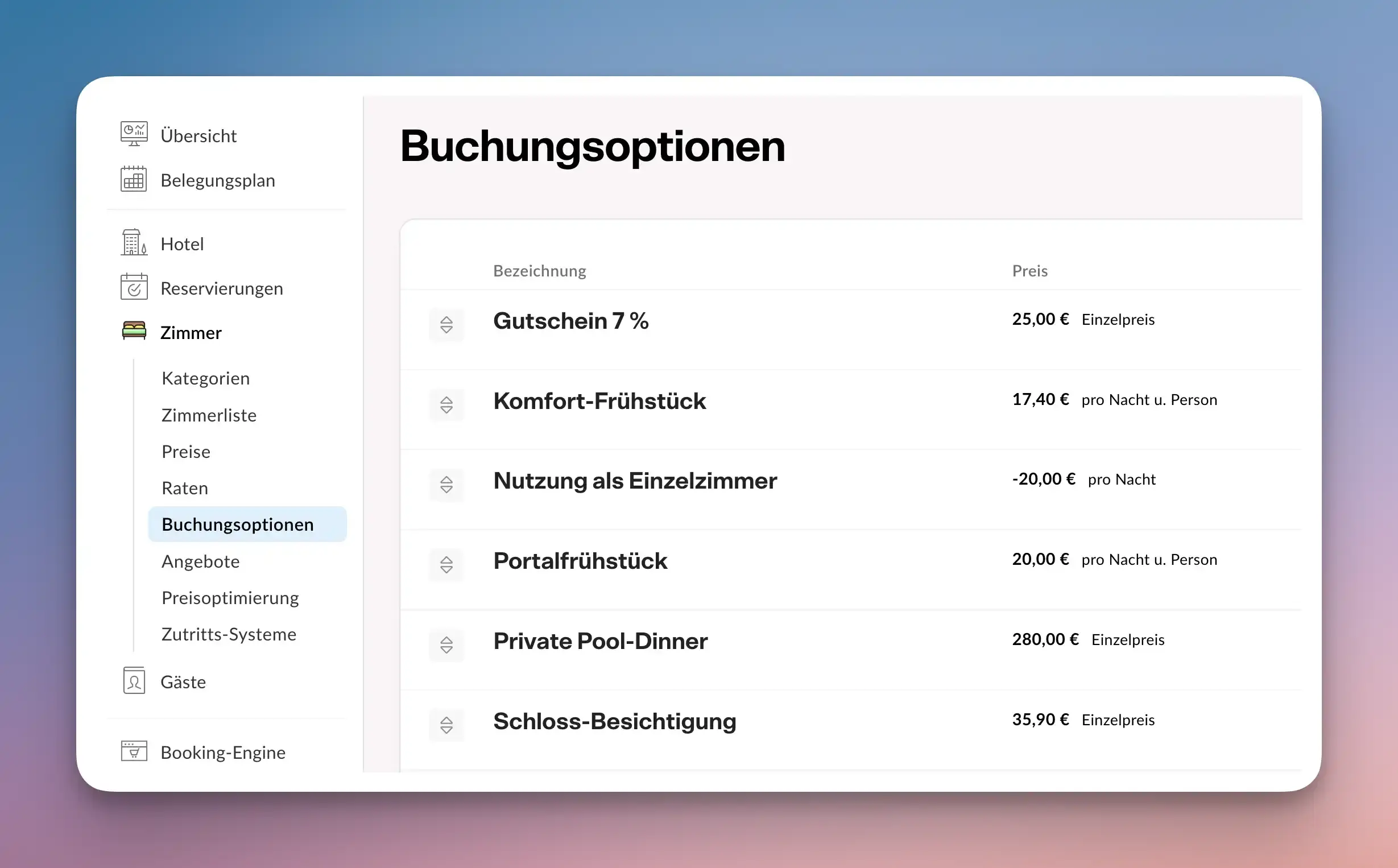
Set Booking Options
Sending the Data to Casona
Once you have received the data from your previous provider, please send it as a file attachment to support@casona.com and include the name of the hotel. If the attachment is too large to send, you can use a service such as TransferNow (an EU-based provider) to send us the data.
We’ll do our best to process the import as quickly as possible. It usually takes 24 hours for all the data to be available in the system. If manual adjustments are necessary, the entire process may take a few days.
