Create Offers for Guests
With Casona’s convenient mailing features, you can quickly and accurately create lodging offers for your guests!
Offer mailings present guests with the necessary information in a clear, organized format:
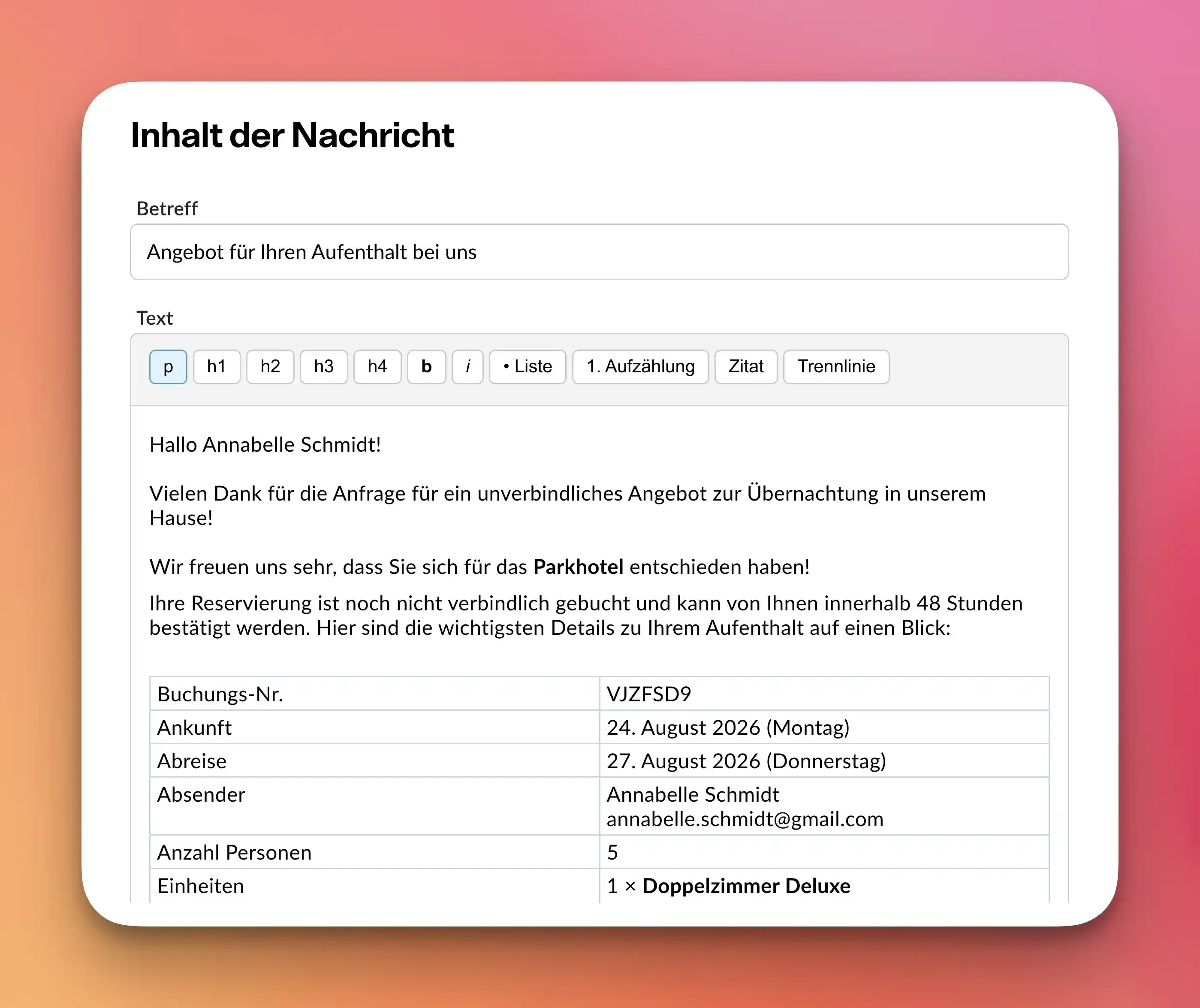
To create such offers, follow these steps in your Casona account.
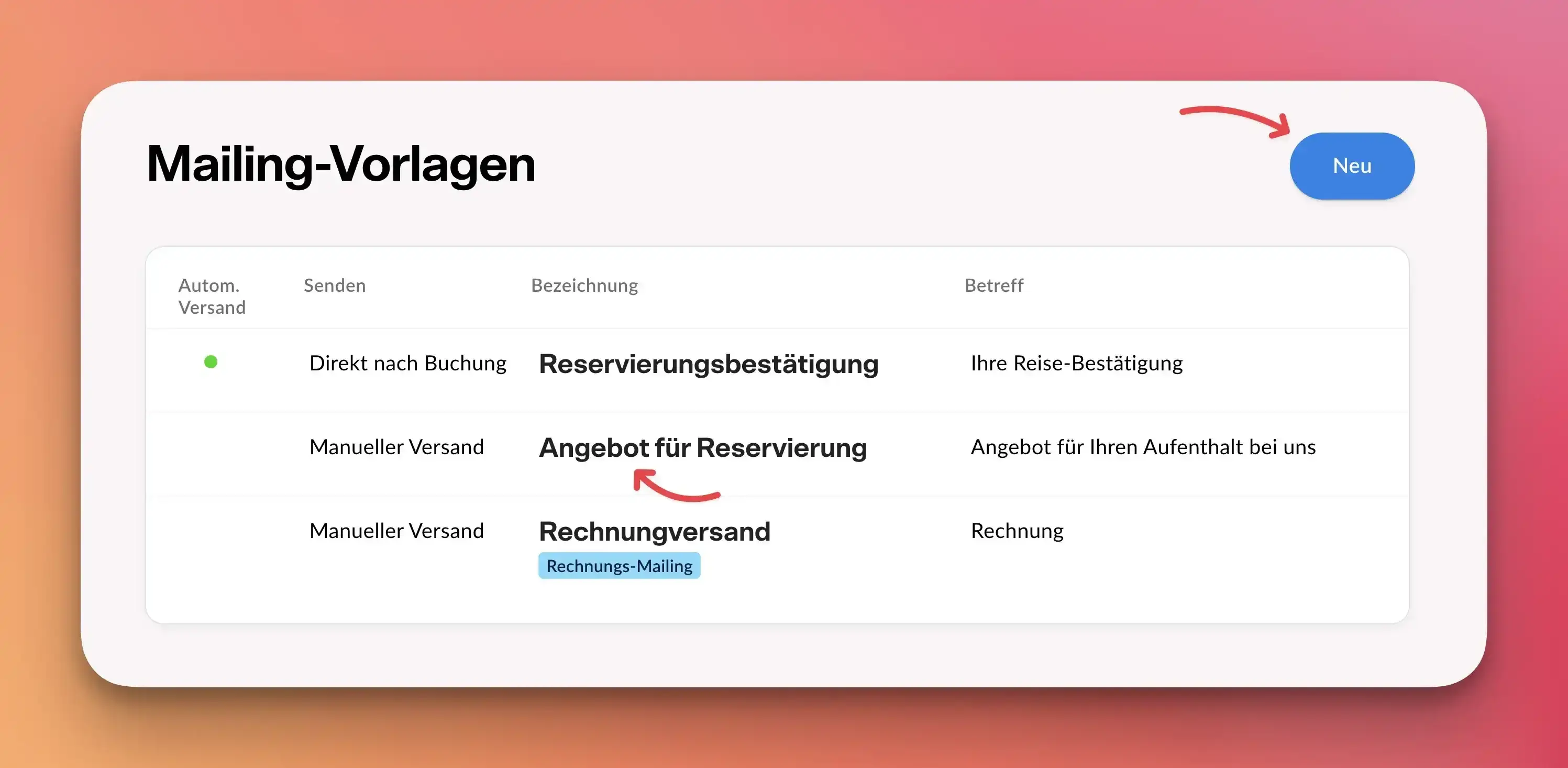
First, create a suitable mailing. This will be sent to your guests as soon as an offer is to be sent out. You can find the mailing management section in the Hotel—Mailings menu.
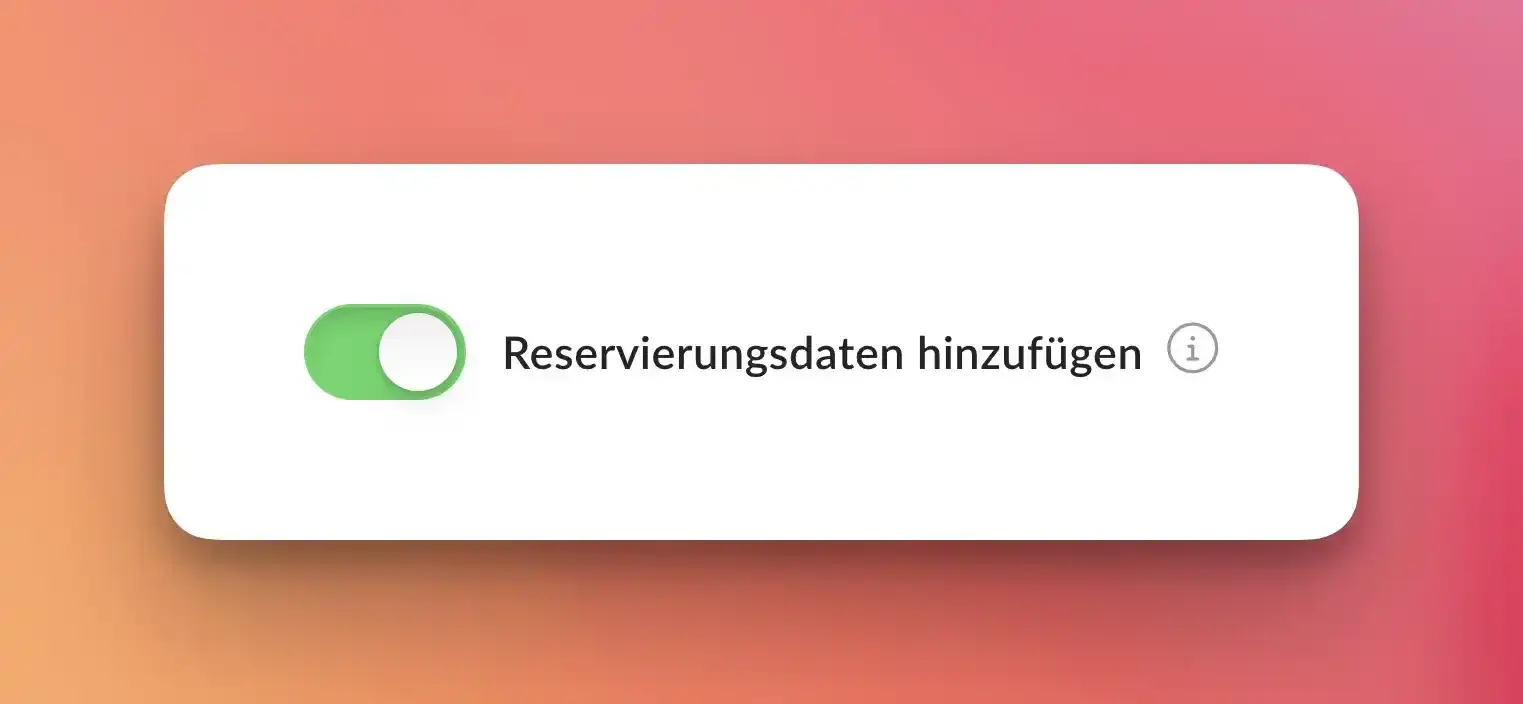
In the offer email, enable the "Add Reservation Details" feature.
This will automatically display all applicable travel dates in a neat table in your email to the recipient.
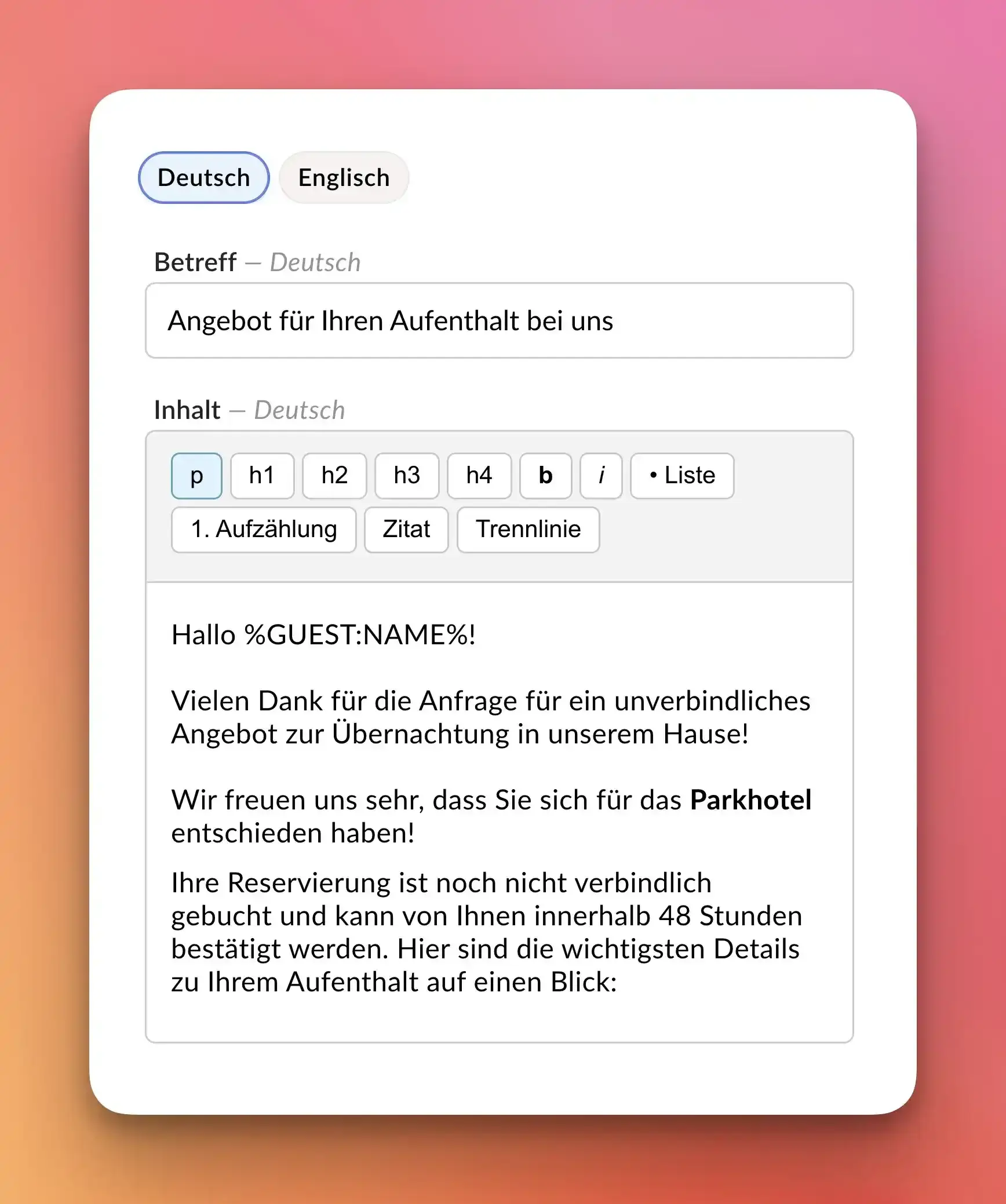
Add appropriate text content, such as a friendly greeting and general information about your home.
As soon as a guest requests a quote, create a booking in the system for the desired travel dates. You can do this via the availability calendar or the “Reservations” menu.
For example, in the availability calendar, click on the desired check-in date and drag the mouse to the check-out date.
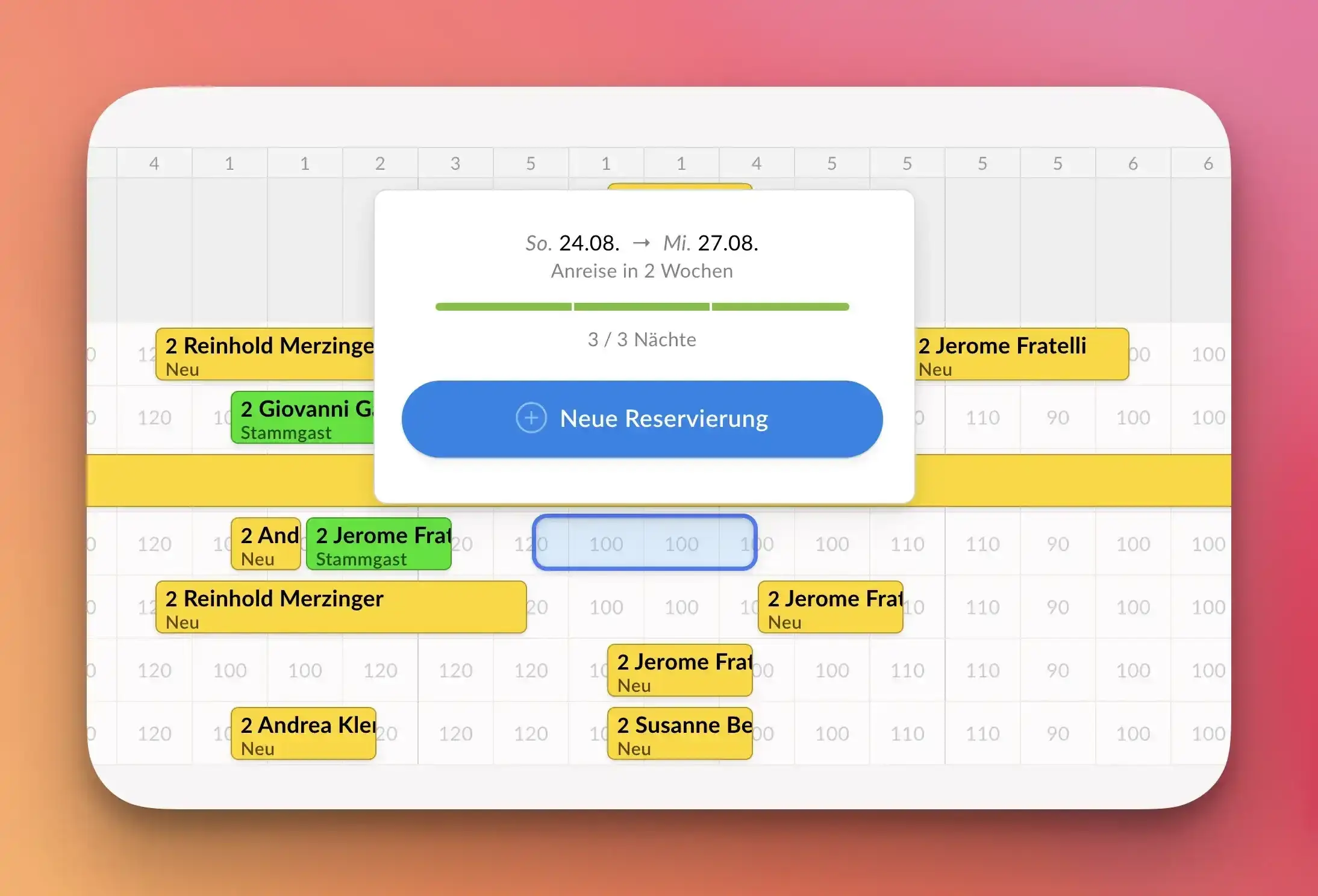
The advantage of entering a reservation directly is that the desired travel dates and guest information are saved directly in your Casona account and are now available at any time for follow-up actions (phone, email).
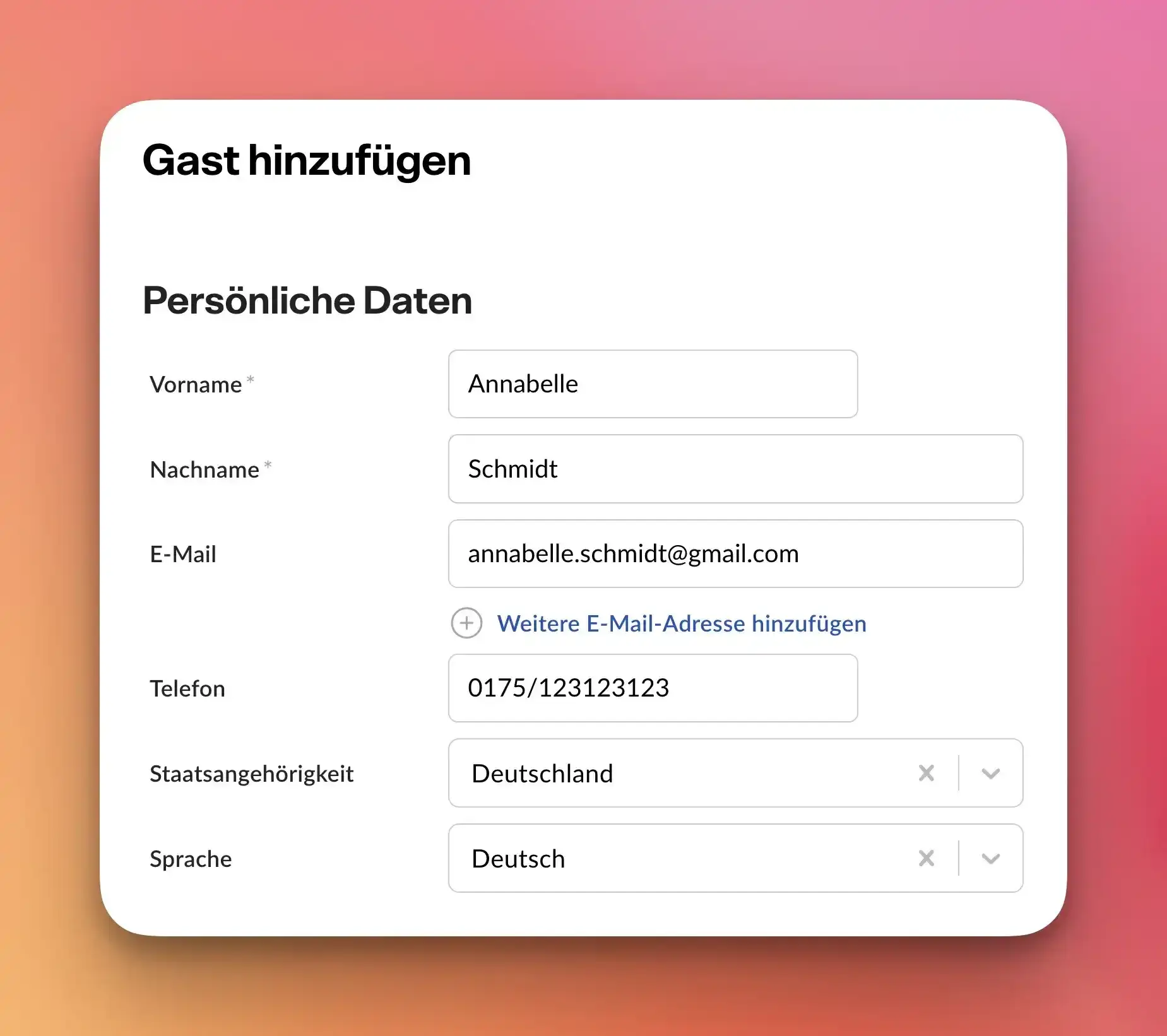
To confirm the new reservation, the booking wizard will open in a new window. There, add a new guest to your guest database. Be sure to enter the most important personal details, such as name, phone number, and email address!
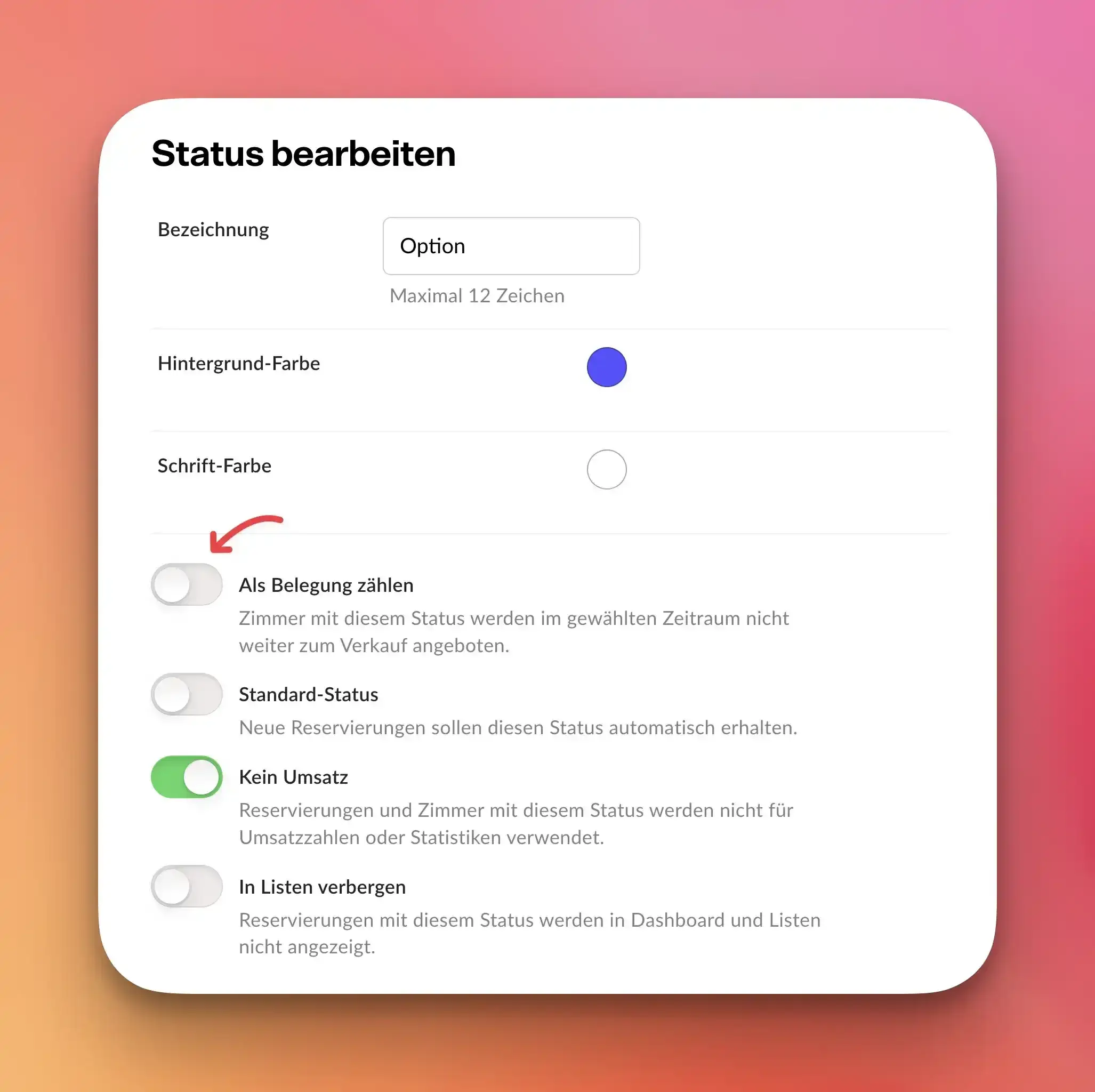
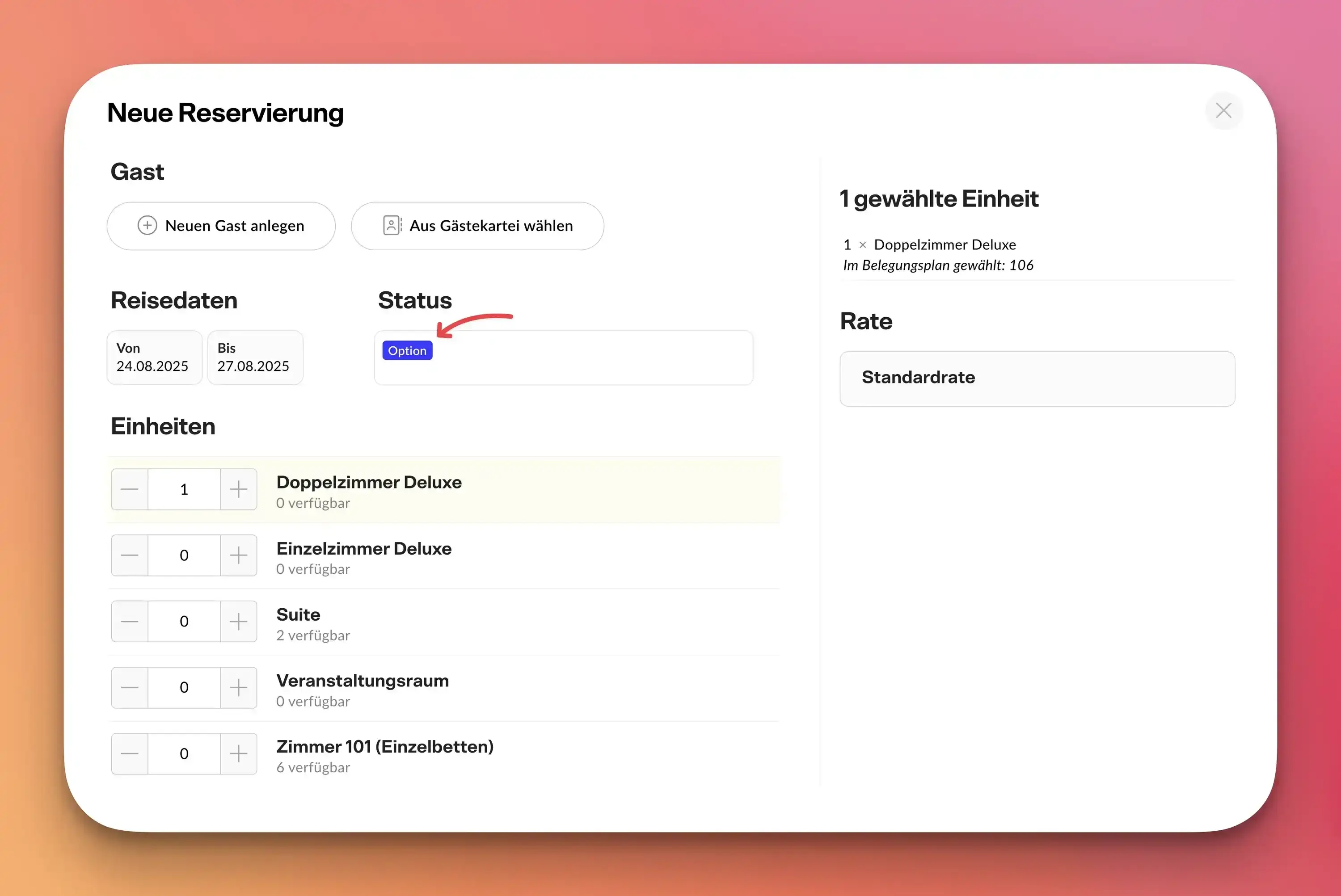
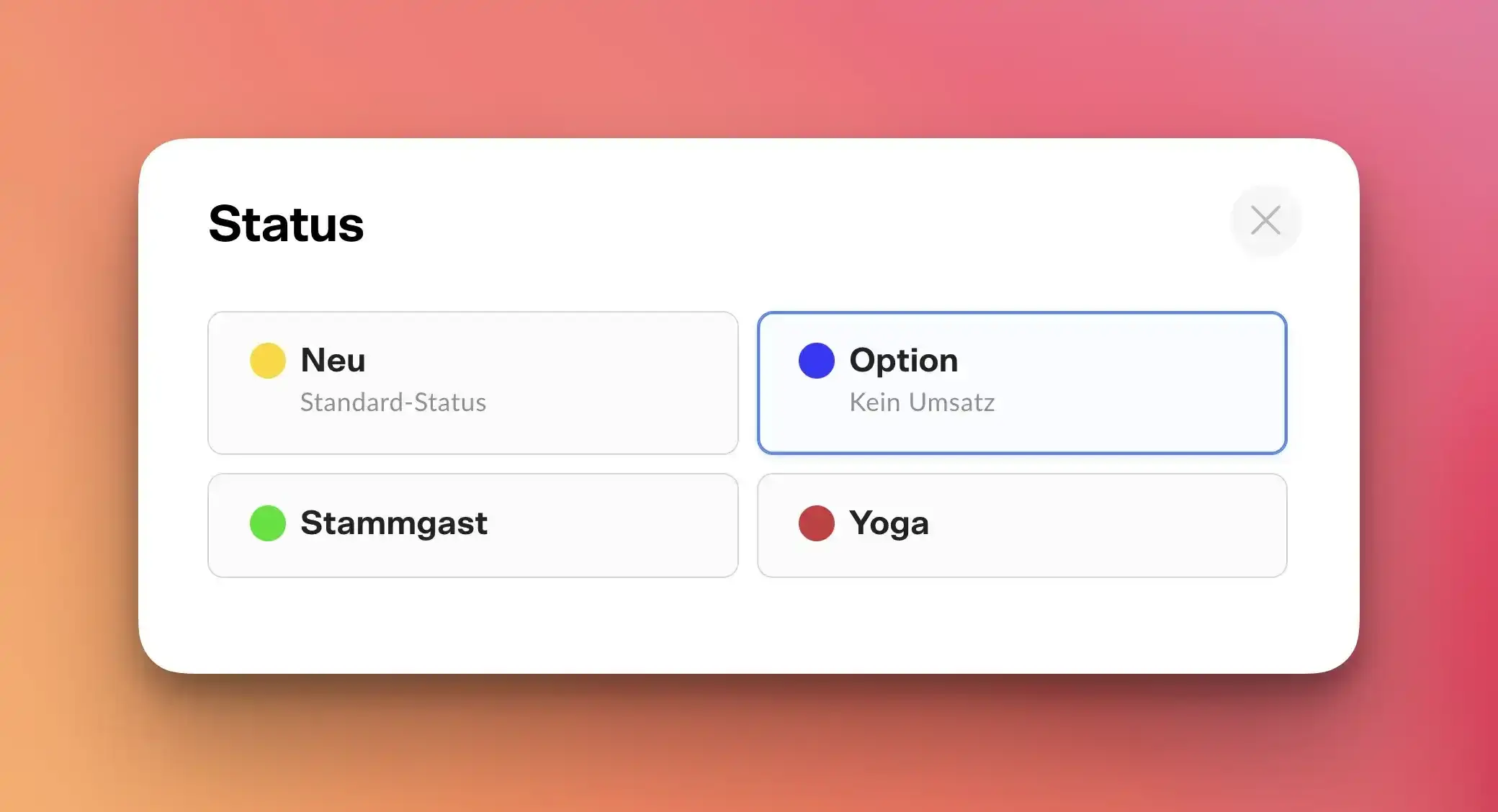
The reservation should be assigned a status such as “Option” or similar. You can create this status in advance in the hotel settings; it should have the “No Revenue” function and should not count toward occupancy.
This ensures that the units remain bookable should someone from outside the property wish to make a firm reservation in the meantime—for example, via Booking.com or a similar platform.
However, if you wish to confirm the reservation for the guest and block the rooms for other bookers, you do not need to use this “Option” status.
Selecting the Appropriate Reservation Status for the Offer in the Booking Wizard
After creating the new reservation, the booking editing page opens automatically. Here, all important information is organized into tabs.
In the "Communication" tab, you'll find the email functions.
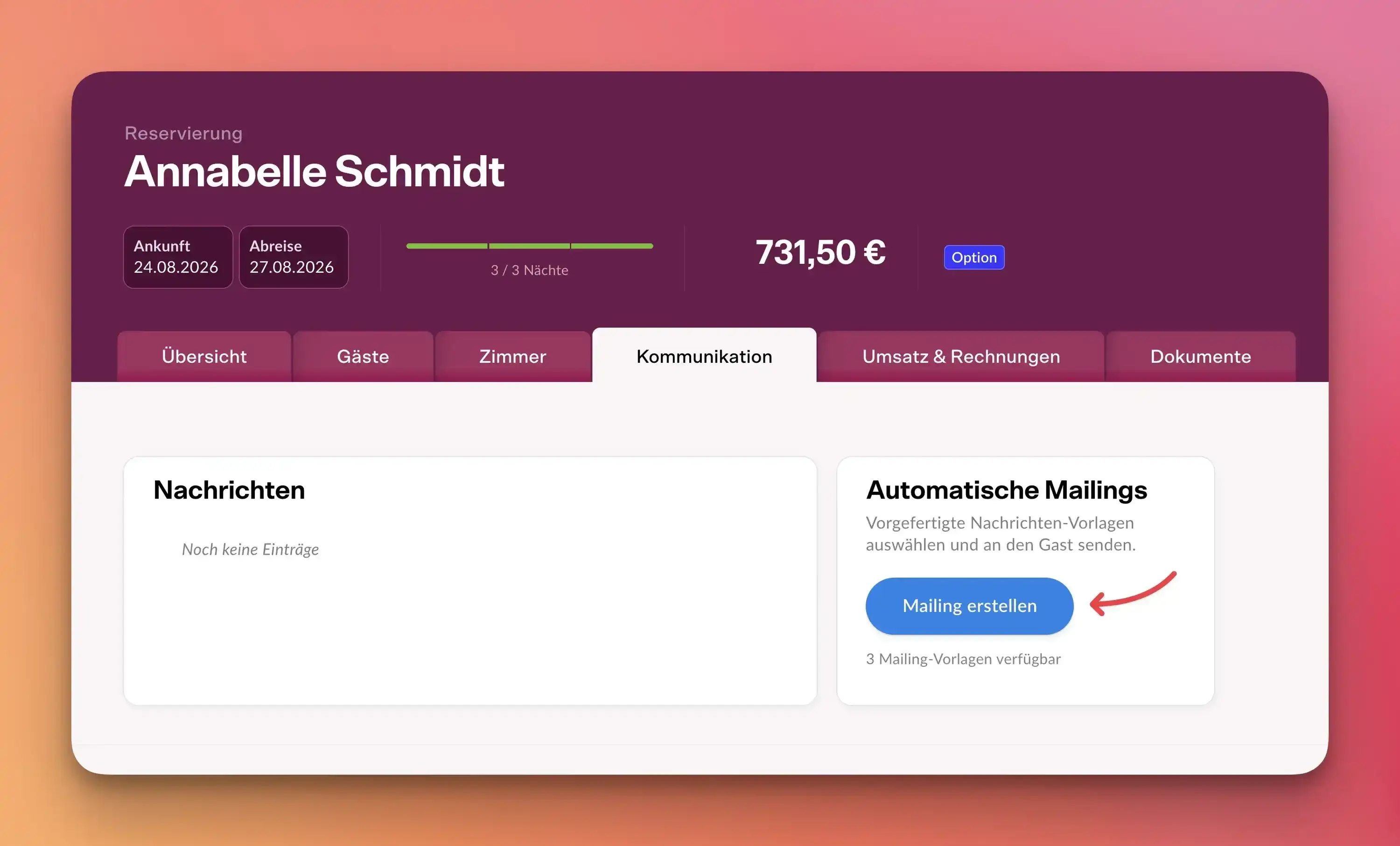
Select "Create Mailing" to prepare the desired promotional email for this guest for sending.
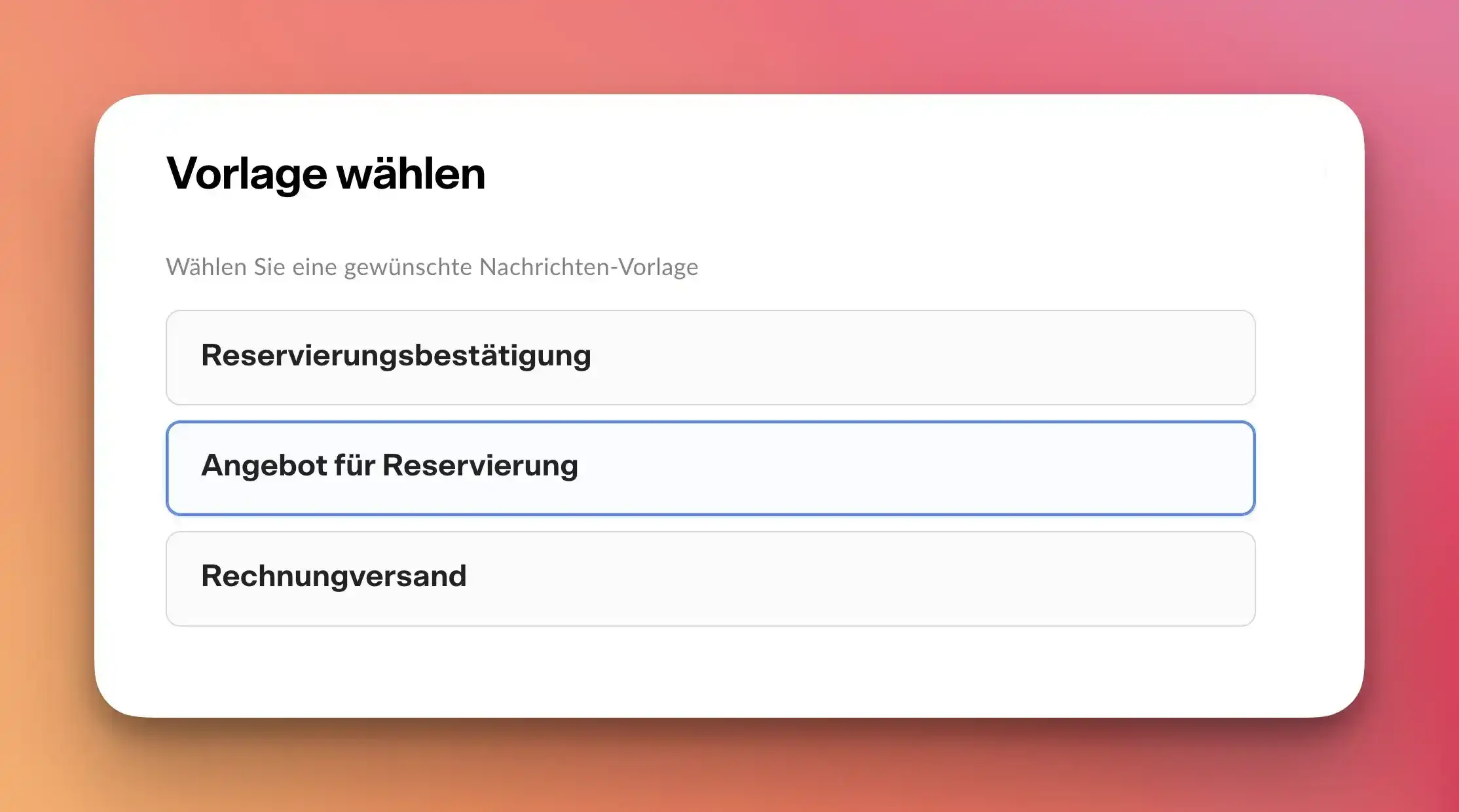
The guest receives a neatly formatted offer—with their exact travel dates, options, and prices. A friendly message from the hotel rounds out the email.
You can edit all text in Mailing-Assisten right up until it’s sent! This is a particularly convenient way to make last-minute adjustments or add personal notes (“As we just discussed on the phone” or “We’ve taken your request for a room with a garden view into account”).
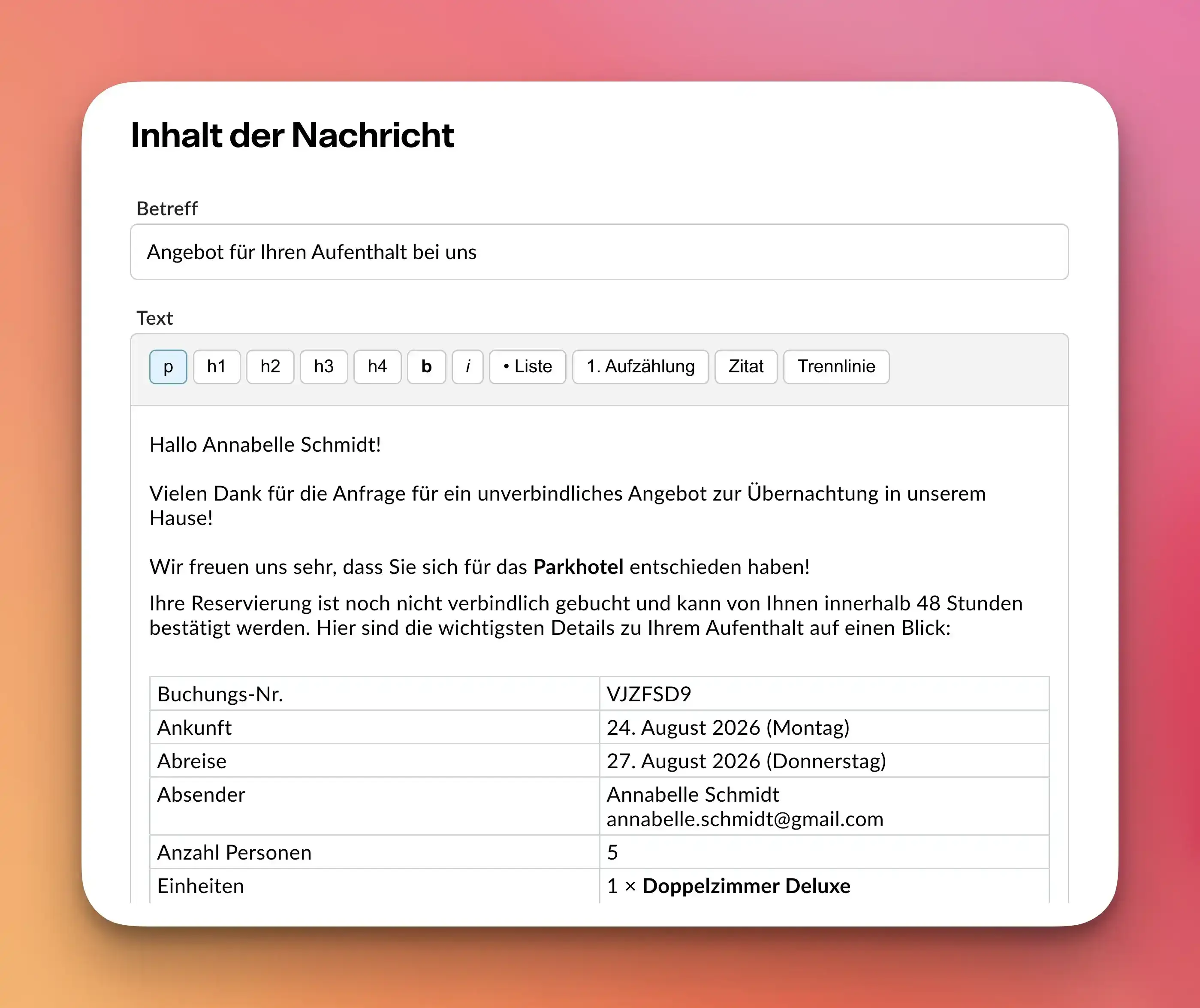
Once sent, the guest will immediately receive all necessary information via email.
If a logo for your property has already been uploaded in the hotel settings in Casona, it will automatically appear in the email.
Once you’ve set up the appropriate email template, sending a customized offer is now a quick and easy process. Guests will receive all the necessary details within minutes and can notify the hotel as soon as they’re ready to convert the offer into a confirmed reservation.
